How it works
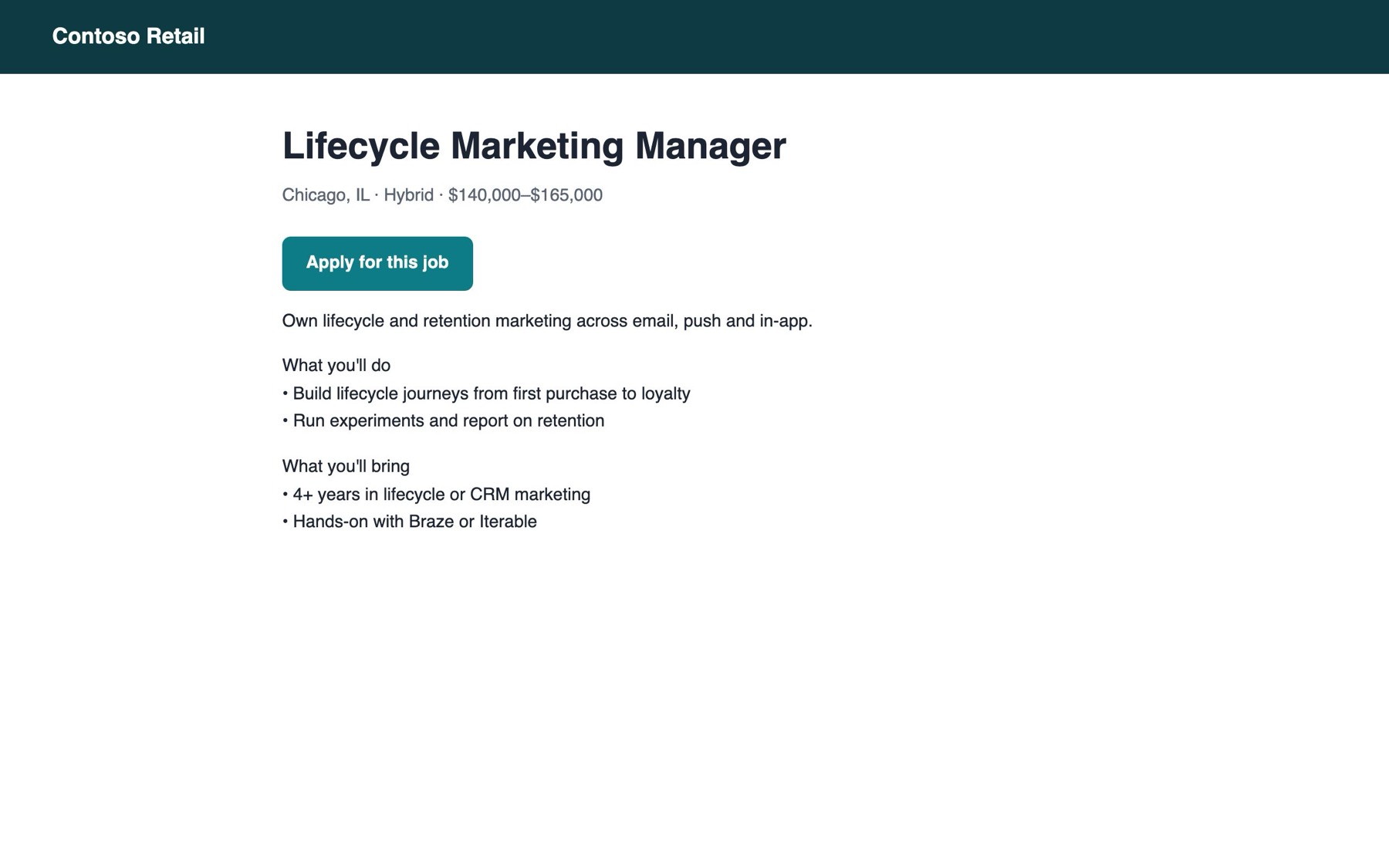
- Open any job posting in Chrome: LinkedIn, Greenhouse, Lever, Workday or a company's careers page.
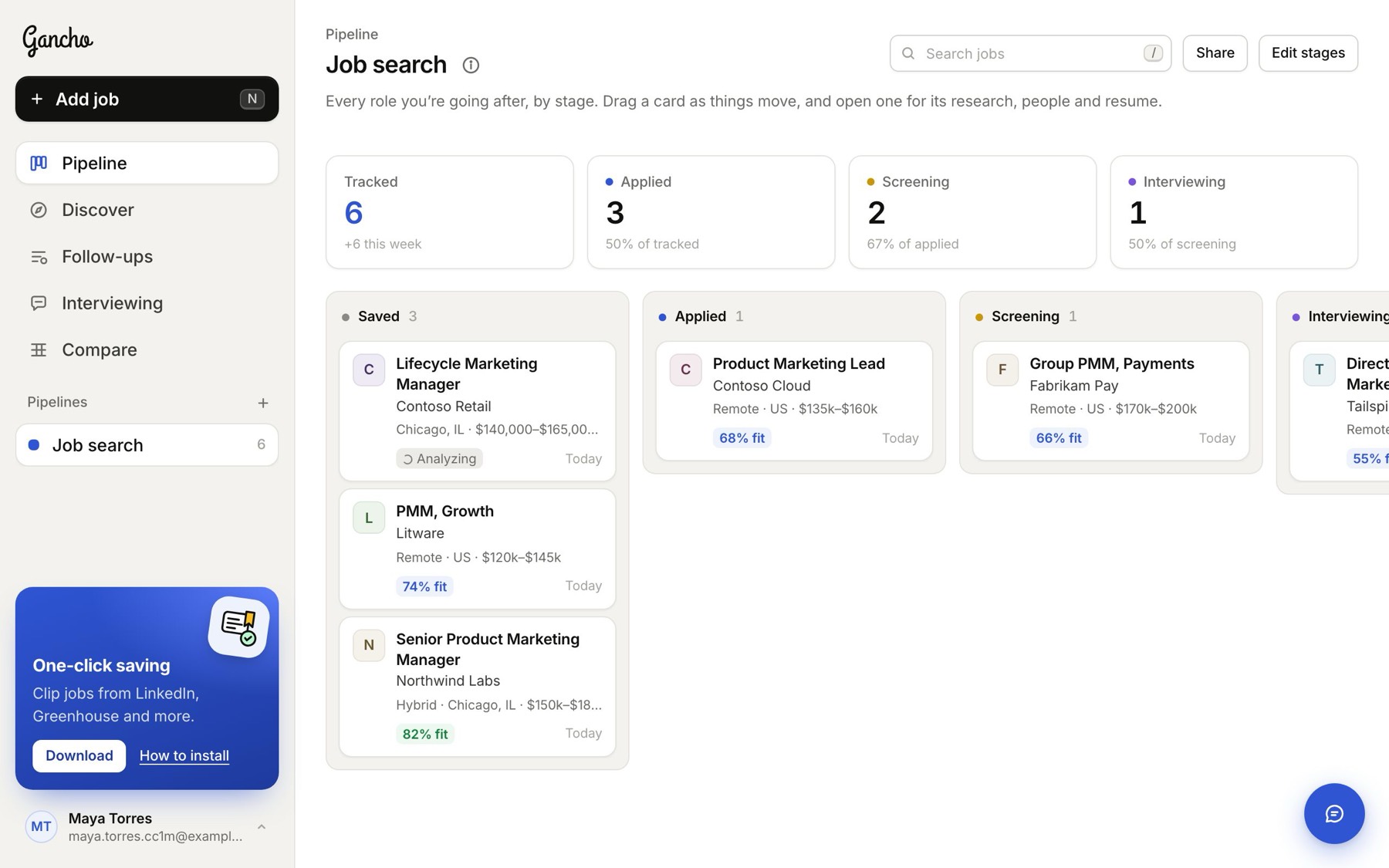
- Click the Gancho icon in the toolbar. A green ✓ on the icon means it is saved, and a Saved to Gancho notice pops up. Click the notice to open the job.
- It is in your Saved column, research already running.
Tips
- Highlight the description first to save exactly that text. It helps on pages with lots of other content.
- Clicking it again on the same posting updates the job rather than adding a second copy.
- It uses your Gancho sign-in in the same Chrome. If you are signed out, it opens Gancho in a new tab. Sign in there, then click the icon again.
- A red ! on the icon means it could not save that page. The notice says why.
Not installed yet? Installing the extension →