Start one
- Open Interviewing in the sidebar and click New practice interview.
- Pick the job. Jobs at Screening, Interviewing or Offer are listed first. For a role you have not saved, choose Another role… and type it in.
- Pick the type: recruiter screen, behavioral, hiring manager, technical, system design, or case or product sense.
- Click Start interview. The interviewer introduces themselves and asks the first question.
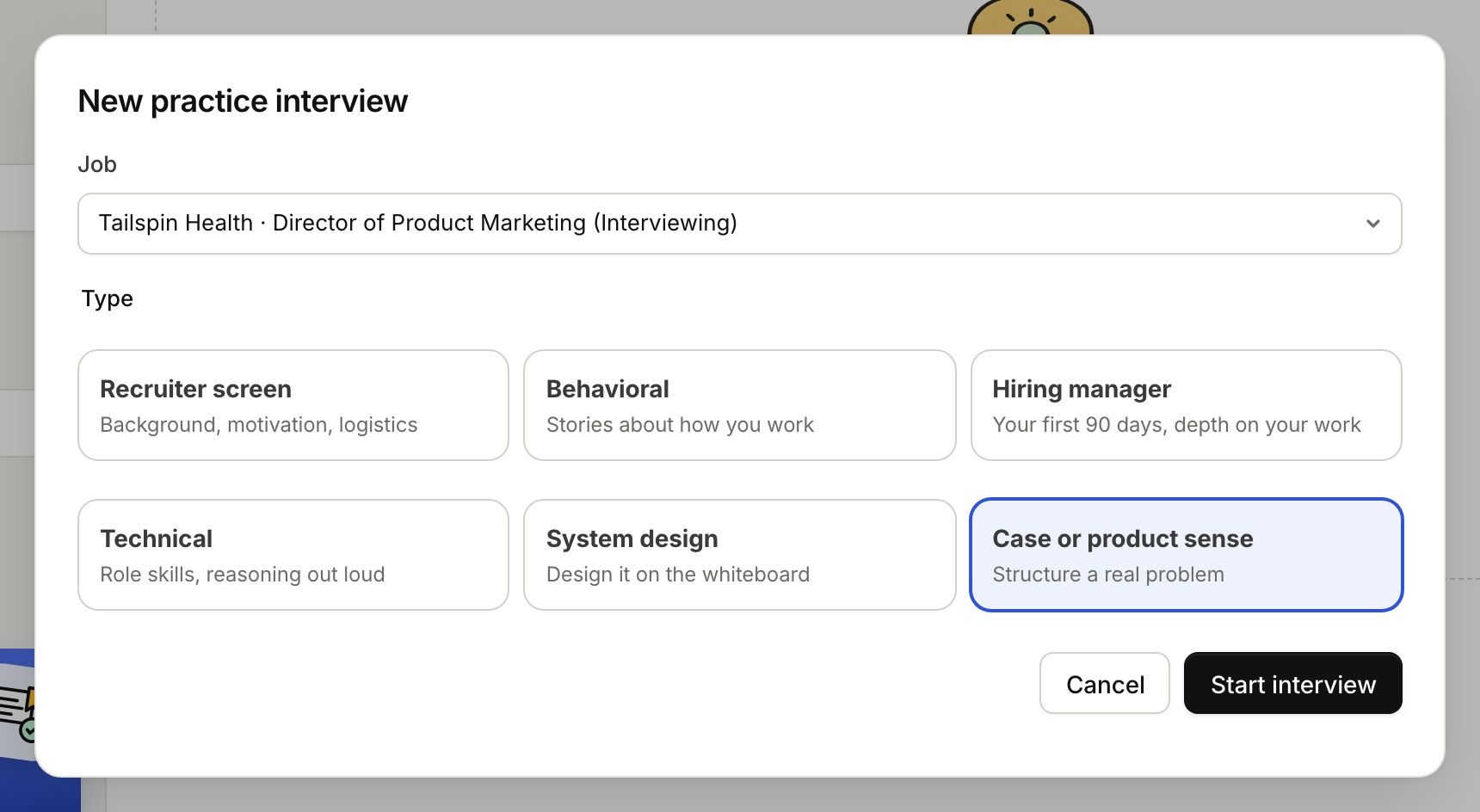
The interviewer has read the posting and your resume. They ask one question at a time and follow up when an answer is thin. To practise the same role again, click its card on the Interviewing page. New, unfinished and past sessions →
Read the question
When the interviewer sets a new problem, it comes in parts: the Setup (the situation), the Goal (what a good answer achieves, highlighted), and the Question itself, on its own line at the bottom. Read the goal twice. Most weak answers solve a different problem.
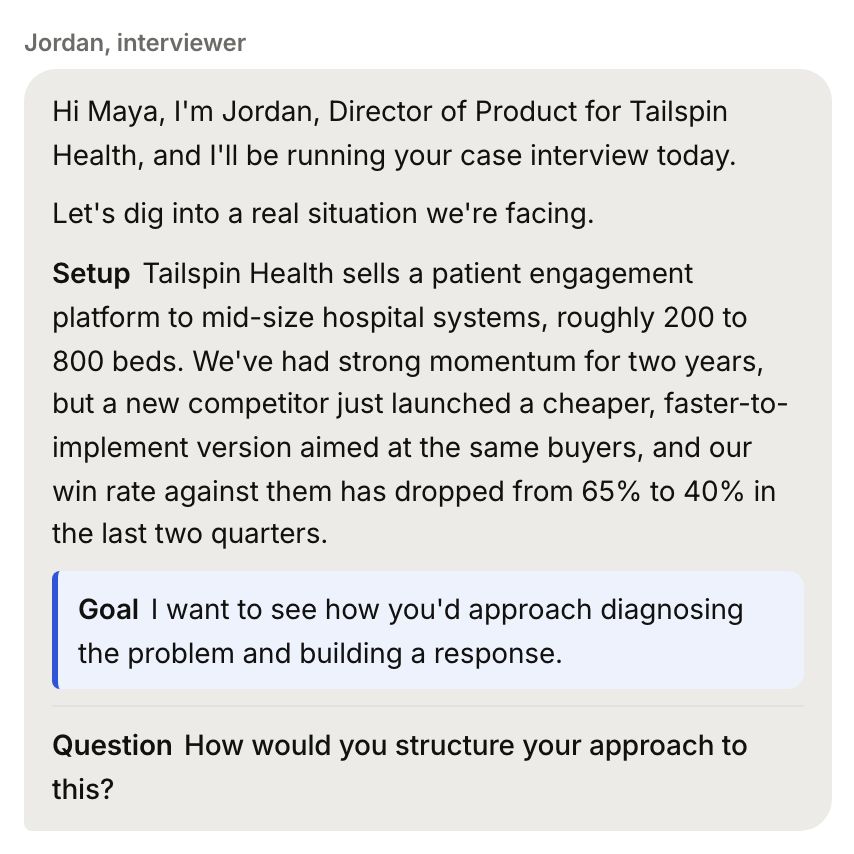
Ask before you answer
Under the conversation, Tips for this question lists the clarifying questions a strong candidate would ask first, plus a tip or two on how to approach it. Pick one to put it in your answer box, change it if you like, and send it. Ask anything else you would want to know too.
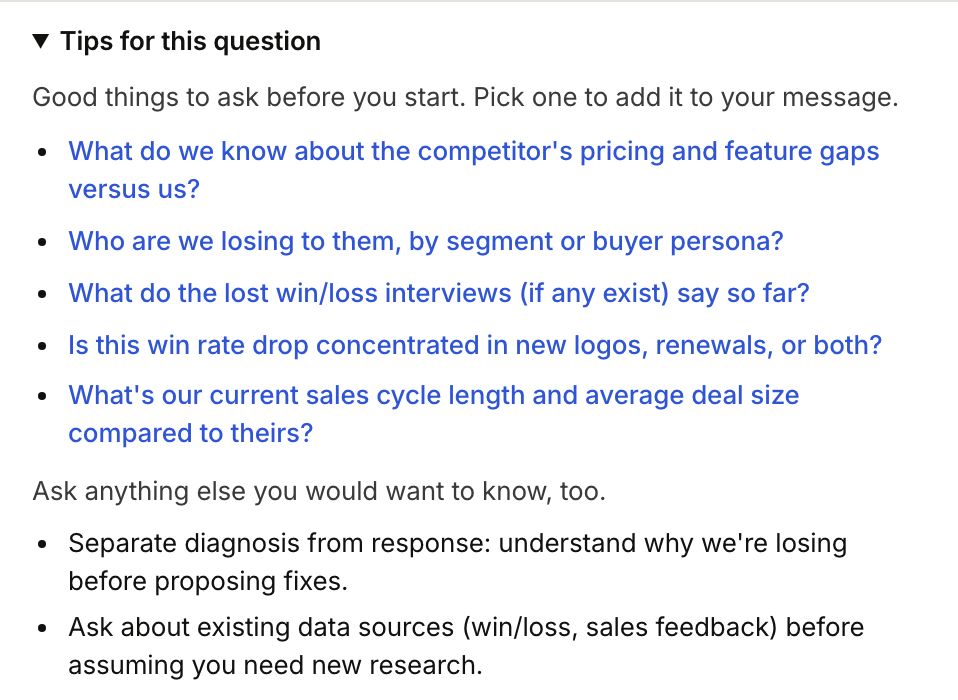
The interviewer answers like a real one: with concrete numbers and facts about the problem, and they stay the same for the whole interview. If it is something you should decide, they will ask you to state an assumption. Click Tips for this question to fold the panel away.
Coach notes
After each of your messages, a short Coach note appears above the interviewer's reply, in a dashed box. It says what you did well or what you have not covered yet, for example "Good, you asked about scale first. You haven't covered false positives yet." The interviewer stays in character; the notes are only for you.
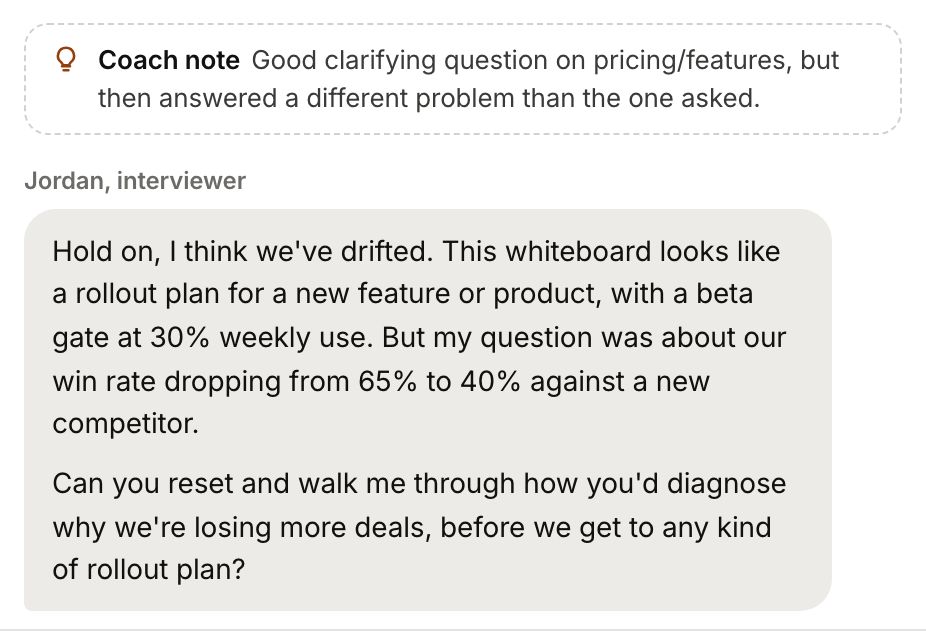
Type or speak
Type your answer and press Enter to send it (Shift+Enter starts a new line). Or click the microphone next to the box and say it out loud, the way you will in the real interview. Gancho turns your words into text and tells you how you came across. Speaking your answers →
Sketch on the whiteboard
The right side is a whiteboard. Draw boxes, arrows and labels the way you would on a real one. It saves as you draw.
The interviewer sees it. Every time you send a message, they get a list of what is on the board (the labels, and which arrows connect what). When the board has changed, or you say something like "take a look at my diagram", they also get a picture of it. So they can ask about the box you just added, by name.
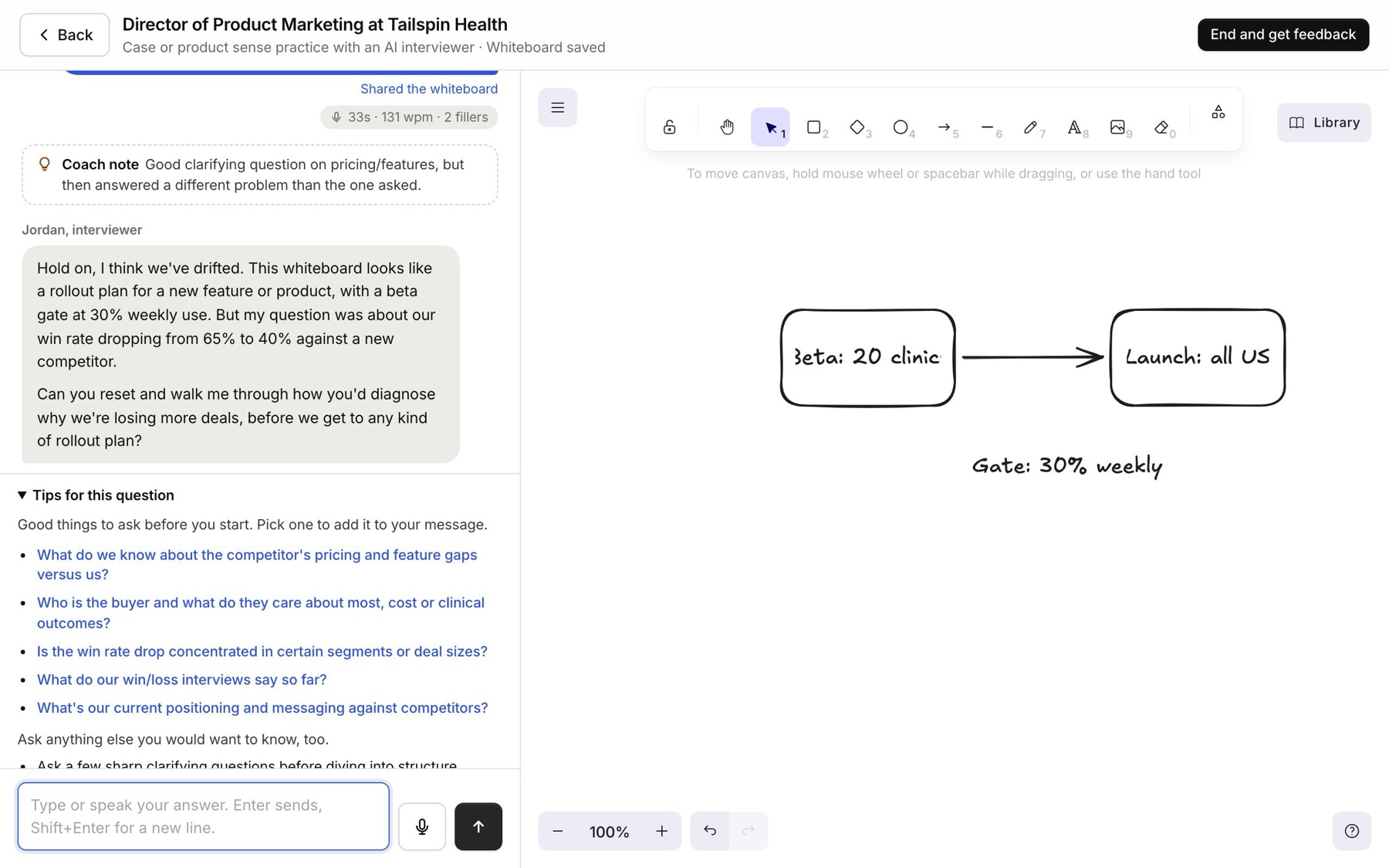
Get feedback
Click End and get feedback whenever you are ready. It takes about half a minute. You get a score out of 100 with a verdict, what worked, what to work on, a note on your whiteboard if you drew, How you spoke if you spoke any answers, and stronger versions of some of your answers, written from your own experience. The transcript, with the coach notes, stays underneath.
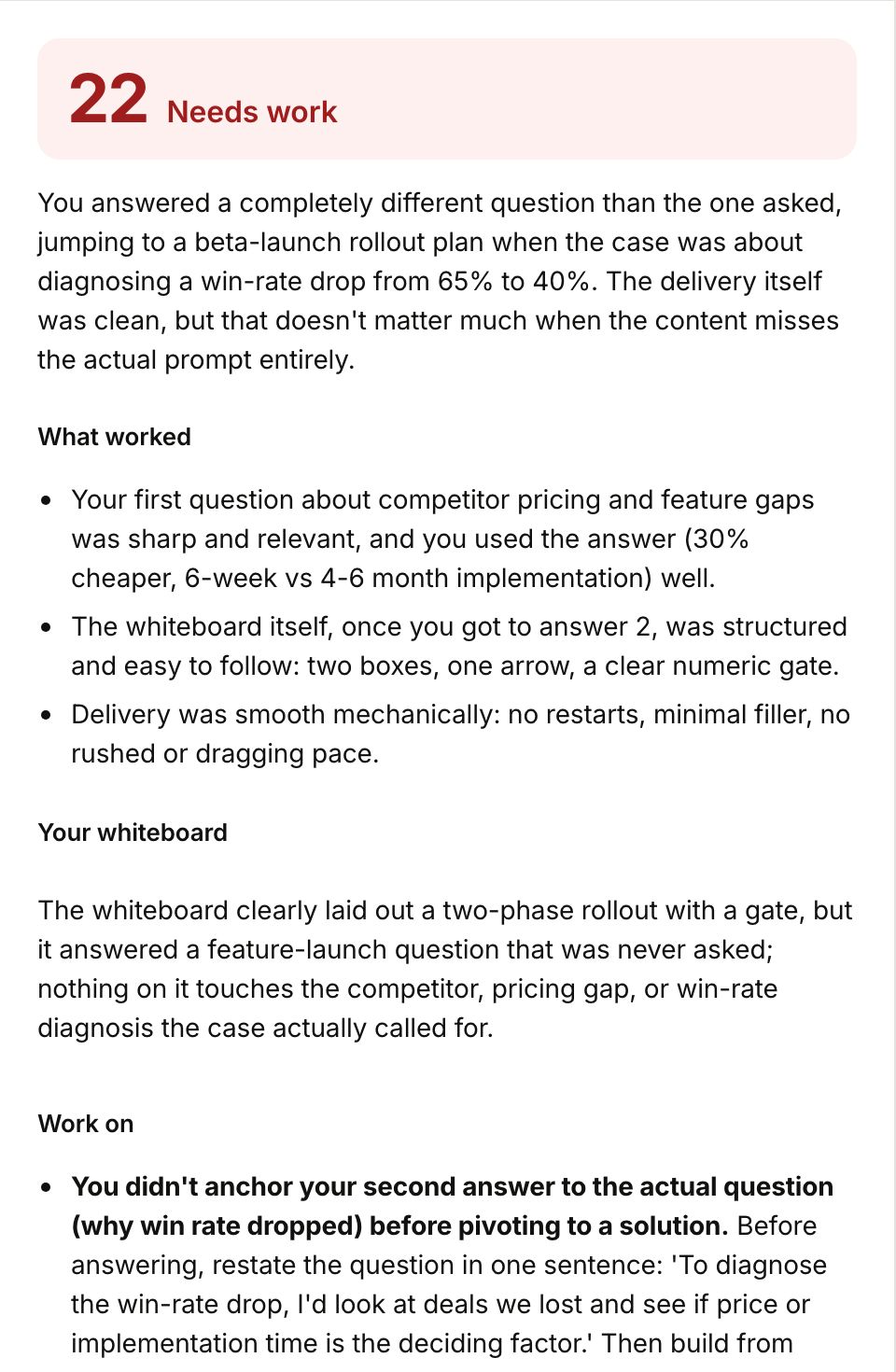
Practise again, under the feedback, starts the same interview fresh.